After accessing the cpanel panel, you will enter this portal like this. There is another article, teaching how to access the panel on our website.

The next step will be to find the E-MAIL subdivision, similar to this image. I explain it this way, as cpanel themes may have been updated and icons, tool arrangements may change.
Now choose the “email accounts” option and it will redirect the website to the panel below.

In the place written Domain, your domain will be written and in username the ending will be @yourdomain. Then just fill in what your username will be like on your domain.
Your password must have a strength that will be filled in as you write, it will need to have letters, both upper and lower case, numbers and symbols, to increase the difficulty of access for strangers, as in the illustration below.

There is an option to let the server choose the password, as in the option below. Just be careful to save it in a safe place.

In the “Edit Settings” button, this means Edit settings, you can choose to increase the space of the email, whether it will automatically add folders and whether you want to receive an email with instructions for configuring the sending and receiving of this in another message box. Then just have it created.
After that, go back to the email accounts page and you will see that your email was created successfully, the 3 buttons appear on the side as shown in the figure below.
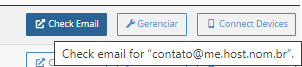
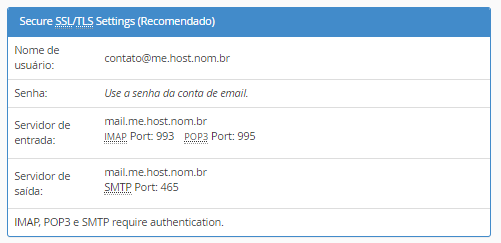
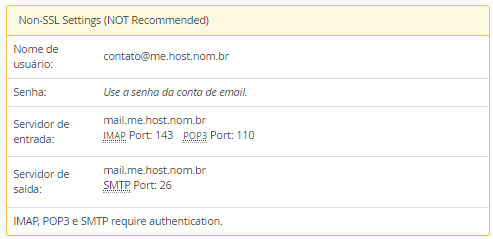
The first button written check E-mail will enter the message box of the selected email, the second button written manage will return to the email size screen, username and password, if you want to update and the third button written Connect Devices, which means Connected Devices, shows email configuration screens, like these: